> ## Documentation Index
> Fetch the complete documentation index at: https://cedar.mintlify.site/llms.txt
> Use this file to discover all available pages before exploring further.
# Debugger Panel
> A powerful development tool that provides real-time insights into your Cedar OS application with network monitoring, message tracking, and state inspection
The DebuggerPanel is an essential development component that gives you comprehensive visibility into your Cedar OS application's runtime behavior. It provides real-time monitoring of network requests, message flows, and application state changes.
> [!NOTE]
>
> The DebuggerPanel should only be used during development and should not be
> included in production builds.
## Overview
The DebuggerPanel appears as a draggable, floating panel with three main tabs:
* **Network**: Monitor agent connection logs and API requests
* **Messages**: Track chat messages and their metadata
* **States**: Inspect registered Cedar OS states in real-time
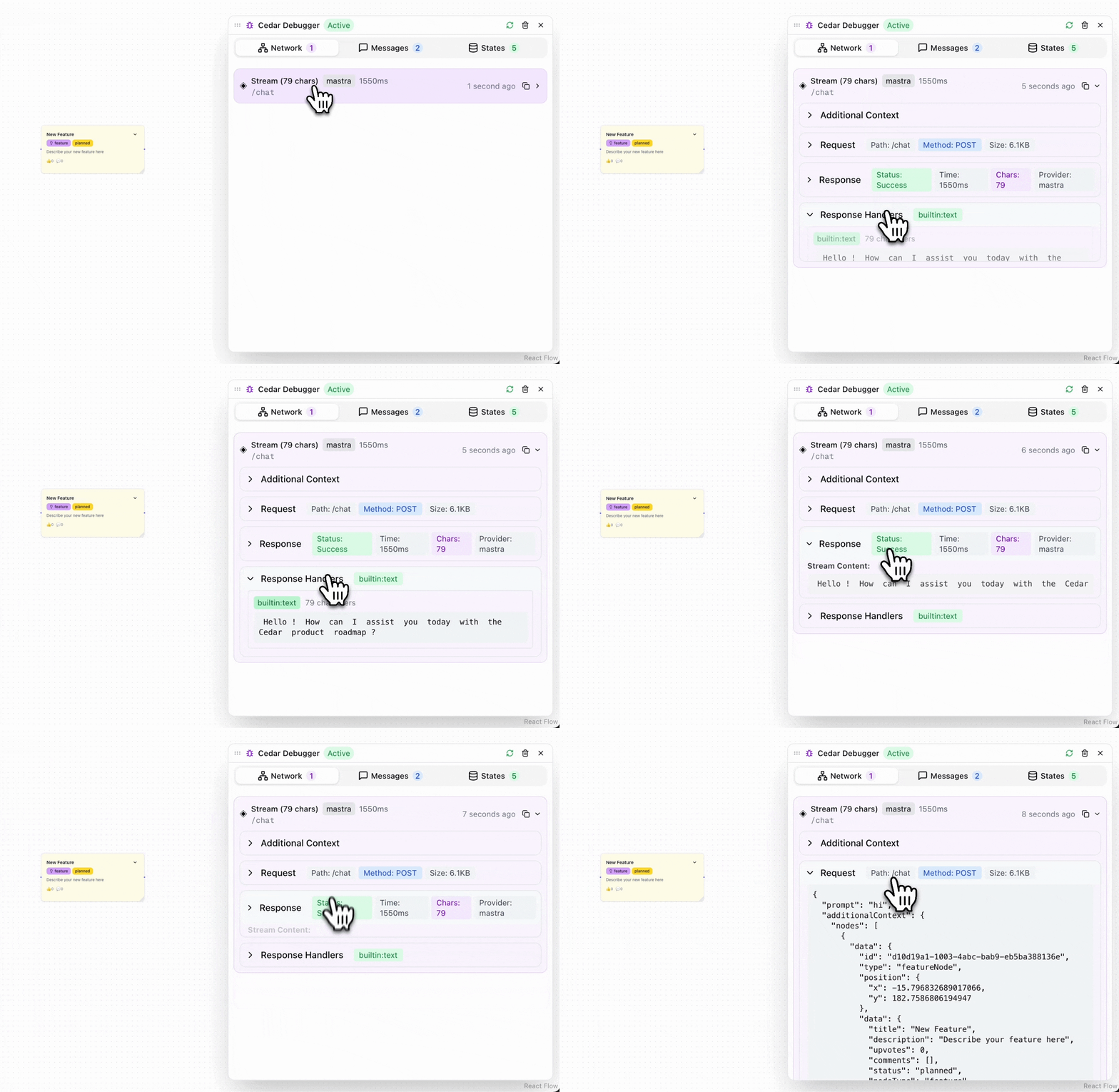
Cedar Debugger Panel in action - real-time monitoring of network requests, messages, and application state
## Features
### 🔍 Real-time Monitoring
* Live tracking of network requests and responses
* Message flow visualization
* State change detection and inspection
### 🎯 Interactive Interface
* Collapsible floating button that expands to full panel
* Draggable positioning anywhere on screen
* Resizable panel with corner and edge handles
* Copy-to-clipboard functionality for debugging data
### 📊 Comprehensive Tabs
* **Network Tab**: View agent connection logs, request/response data, and timing information
* **Messages Tab**: Inspect chat messages, metadata, and message history
* **States Tab**: Monitor all registered Cedar OS states and their current values
### ⚡ Development Controls
* Pause/resume debugging to control data collection
* Clear all logs with a single click
* Visual indicators showing data counts in each tab
## Basic Usage
### Installation
The DebuggerPanel is available as part of the `cedar-os-components` package:
```tsx React Component theme={null}
import { DebuggerPanel } from 'cedar-os-components';
export default function App() {
return (
{/* Your app content */}
{/* Add DebuggerPanel for development */}
);
}
```
```tsx With Custom Position theme={null}
import { DebuggerPanel } from 'cedar-os-components';
export default function App() {
return (
{/* Position the panel in top-left corner */}
);
}
```
### Environment-based Inclusion
For production safety, conditionally render the DebuggerPanel:
```tsx theme={null}
import { DebuggerPanel } from 'cedar-os-components';
export default function App() {
return (
{/* Only show in development */}
{process.env.NODE_ENV === 'development' && }
);
}
```
## Component API
### Props
**initialPosition** `\{ x: number; y: number \}` (default: \{ x: window\.innerWidth - 80, y: 20 })
Initial position of the debugger panel on the screen. The panel will appear at
these coordinates when first rendered.
**className** `string`
Optional CSS class name to apply custom styling to the debugger panel.
### Default Behavior
* **Initial State**: Appears as a collapsed floating button in the top-right corner
* **Positioning**: Automatically constrains to viewport boundaries when dragged
* **Sizing**: Default panel size is 500x350px with minimum size constraints
* **Data Collection**: Starts collecting data immediately when rendered
## Using the Debugger
### Collapsed State
When collapsed, the DebuggerPanel shows as a floating bug icon button:
* **Red badge**: Indicates the number of network logs when present
* **Click to expand**: Opens the full debugging interface
* **Drag to move**: Reposition the button anywhere on screen
### Expanded State
The expanded panel provides full debugging capabilities:
**1. Network Tab**
Monitor all agent connections and API requests:
* View request/response data
* Check timing information
* Copy request details for external testing
* Filter by request type or status
**2. Messages Tab**
Track chat message flow: - Inspect message content and metadata - View message
timestamps - Copy message data for analysis - Monitor message processing
states
**3. States Tab**
Examine application state:
* View all registered Cedar OS states
* Monitor real-time state changes
* Copy state data for debugging
* Track state update frequency
### Panel Controls
The debugger panel header includes several control buttons:
* **Refresh**: Toggle debugging on/off (green when active)
* **Trash**: Clear all collected logs and data
* **X**: Collapse the panel back to button state
## Advanced Usage
### Custom Positioning Strategy
For complex layouts, you might want to position the debugger relative to other UI elements:
```tsx theme={null}
import { DebuggerPanel } from 'cedar-os-components';
import { useEffect, useState } from 'react';
export default function App() {
const [debuggerPosition, setDebuggerPosition] = useState({ x: 0, y: 0 });
useEffect(() => {
// Position relative to a specific element
const sidebar = document.getElementById('sidebar');
if (sidebar) {
const rect = sidebar.getBoundingClientRect();
setDebuggerPosition({
x: rect.right + 20,
y: rect.top,
});
}
}, []);
return (
);
}
```
### Integration with Cedar Store
The DebuggerPanel automatically connects to your Cedar store and monitors:
* Agent connection logs via `store.agentConnectionLogs`
* Chat messages via `store.messages`
* Debug state via `store.isDebugEnabled`
* Registered states via `store.registeredStates`
> [!WARNING]
>
> Make sure your Cedar store is properly configured before adding the
> DebuggerPanel, as it depends on these store properties for functionality.
### Development Workflow
Here's a recommended workflow for using the DebuggerPanel:
> [tab] Initial Setup
>
> 1. Add DebuggerPanel to your main app component
> 2. Ensure it's conditionally rendered for development only
> 3. Test that it appears and can be positioned as needed
> [tab] Debugging Sessions
>
> 1. Expand the panel when issues arise 2. Use the Network tab to check API
> communication 3. Monitor the Messages tab for chat flow issues 4. Inspect
> States tab for state management problems 5. Copy relevant data for further
> analysis
> [tab] Performance Monitoring
>
> 1. Keep the panel open during development
> 2. Monitor request timing in Network tab
> 3. Watch for state update patterns in States tab
> 4. Clear logs periodically to avoid memory buildup
## Best Practices
### Development Environment
> [!TIP]
>
> Always conditionally render based on environment variables
> [!TIP]
>
> Position the panel where it won't interfere with your main UI
> [!TIP]
>
> Clear logs regularly during long debugging sessions
### Performance Considerations
> [!WARNING]
>
> The DebuggerPanel collects data continuously, which can impact performance
> during extended debugging sessions. Use the pause/resume toggle when not
> actively debugging.
### Data Security
> [!WARNING]
>
> Never include the DebuggerPanel in production builds as it exposes internal
> application data and could pose security risks.
## Troubleshooting
> [accordion] DebuggerPanel not appearing
>
> * Verify that `cedar-os-components` is properly installed
> * Check that the component is rendered within a Cedar store provider
> * Ensure the initial position is within viewport boundaries
> * Confirm the component isn't hidden by CSS z-index issues
> [accordion] No data showing in tabs
>
> * Verify your Cedar store is properly configured - Check that debugging is
> enabled (green refresh button) - Ensure your agent connections are properly
> set up - Try clearing logs and generating new activity
> [accordion] Panel positioning issues
>
> * The panel auto-constrains to viewport boundaries
> * Try setting a custom `initialPosition` prop
> * Check for CSS conflicts that might affect positioning
> * Ensure the parent container allows absolute positioning
## Related Components
* [CommandBar](https://cedar.mintlify.site/components/command-bar.md) - For command-based debugging
* [ChatInput](https://cedar.mintlify.site/components/chat-input.md) - For interactive debugging sessions
* [FloatingContainer](https://cedar.mintlify.site/components/floating-container) - For custom floating UI elements
This documentation is built and hosted on [Mintlify](https://mintlify.com), a developer documentation platform.