> ## Documentation Index
> Fetch the complete documentation index at: https://docs.cedarcopilot.com/llms.txt
> Use this file to discover all available pages before exploring further.
# Using State Diff Management
> Learn how to track, visualize, and manage state changes with Cedar OS diff tracking system
# Using State Diff Management
This is very early beta for a very complex feature. We recommend joining the
[Discord](https://discord.com/invite/4AWawRjNdZ) or emailing
[jesse@cedarcopilot.com](mailto:jesse@cedarcopilot.com) for support and feedback.
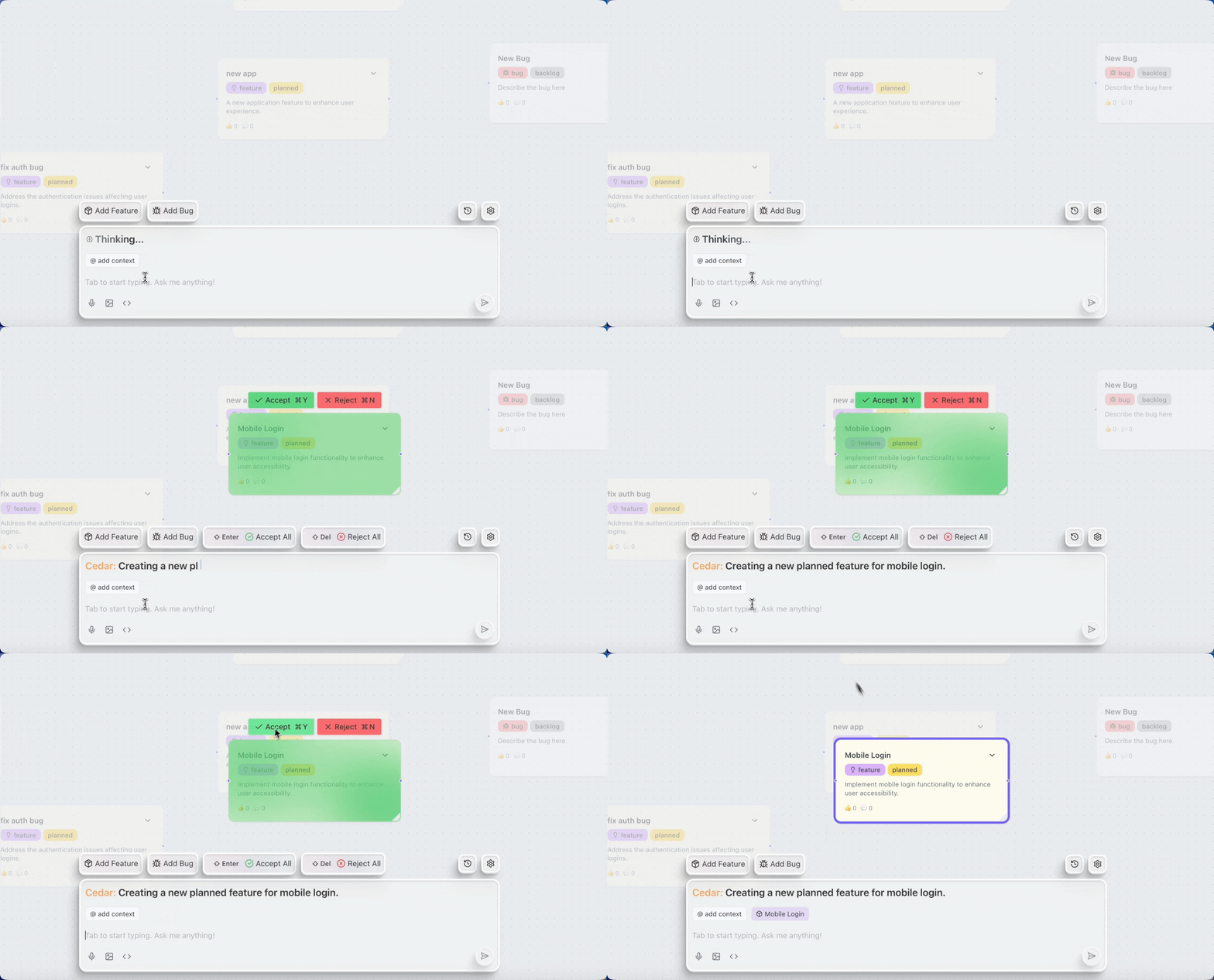
Cedar OS provides a powerful state diff management system that enables you to track changes, visualize differences, and give users control over accepting or rejecting modifications. This is particularly useful for AI-generated changes where users need to review and approve modifications before they're applied.
## Overview
The State Diff system provides:
* **Change tracking** - Automatically track differences between old and new states
* **Visual diff markers** - Add visual indicators to show what's been added, changed, or removed
* **User control** - Accept or reject changes individually or in bulk
* **History management** - Undo/redo support with full history tracking
* **Custom computations** - Transform states to add diff markers or other metadata
## Quick Start
### Basic Usage with `useDiffState`
The simplest way to use diff tracking is with the `useDiffState` hook, which works like React's `useState` but with automatic diff tracking:
```typescript theme={null}
import { useDiffState } from 'cedar-os';
function MyComponent() {
const [nodes, setNodes] = useDiffState('nodes', initialNodes);
// Use it just like useState
const addNode = (node) => {
setNodes([...nodes, node]);
};
return (
{nodes.map((node) => (
))}
);
}
```
### Adding Visual Diff Markers
To visualize changes in your UI, use the `computeState` function to add diff markers:
```typescript theme={null}
import { useDiffState, addDiffToArrayObjs } from 'cedar-os';
function ProductRoadmap() {
const [nodes, setNodes] = useDiffState('nodes', initialNodes, {
description: 'Product roadmap nodes',
diffMode: 'holdAccept', // Changes require explicit acceptance
computeState: (oldState, newState) => {
// Add 'diff' field to data property of changed items
return addDiffToArrayObjs(oldState, newState, 'id', '/data');
},
});
return (
);
}
```
## Diff Modes
Cedar OS supports two diff modes that control how changes are handled:
Changes are immediately visible to users but can be reverted:
```typescript theme={null}
const [state, setState] = useDiffState('myState', initial, {
diffMode: 'defaultAccept', // Changes applied immediately
});
```
Best for:
* Real-time collaboration
* Non-critical changes
* Quick iterations
Changes are held in a pending state until explicitly accepted:
```typescript theme={null}
const [state, setState] = useDiffState('myState', initial, {
diffMode: 'holdAccept', // Changes require acceptance
});
```
Best for:
* AI-generated content review
* Critical data modifications
* Approval workflows
## Managing Diffs
### Accepting and Rejecting Changes
Use `useDiffStateOperations` to access diff management functions:
```typescript theme={null}
import { useDiffState, useDiffStateOperations } from 'cedar-os';
function DiffManager() {
const [data, setData] = useDiffState('data', initialData);
const diffOps = useDiffStateOperations('data');
if (!diffOps) return null;
const { acceptAllDiffs, rejectAllDiffs, undo, redo } = diffOps;
return (
);
}
```
### Individual Diff Management
For granular control over specific changes:
```typescript theme={null}
import { useCedarStore } from 'cedar-os';
function ItemDiffControls({ itemId }) {
const { acceptDiff, rejectDiff } = useCedarStore();
const handleAccept = () => {
// Accept changes for specific item in array
acceptDiff('nodes', '/nodes', 'id', itemId, ['/data/diff']);
};
const handleReject = () => {
// Reject changes for specific item
rejectDiff('nodes', '/nodes', 'id', itemId, ['/data/diff']);
};
return (
);
}
```
## Advanced Usage
### Custom State Setters
Define custom operations that work with diff tracking:
```typescript theme={null}
const [nodes, setNodes] = useDiffState('nodes', initialNodes, {
stateSetters: {
addNode: {
name: 'addNode',
description: 'Add a new node to the roadmap',
parameters: [{ name: 'node', type: 'Node', description: 'Node to add' }],
execute: (currentNodes, setValue, node) => {
setValue([...currentNodes, node]);
},
},
updateNode: {
name: 'updateNode',
description: 'Update an existing node',
parameters: [
{ name: 'id', type: 'string', description: 'Node ID' },
{ name: 'updates', type: 'object', description: 'Updates to apply' },
],
execute: (currentNodes, setValue, { id, updates }) => {
setValue(
currentNodes.map((node) =>
node.id === id ? { ...node, ...updates } : node
)
);
},
},
},
});
```
### Subscribing to Diff Values
Monitor specific fields within your diff state:
```typescript theme={null}
import { useSubscribeToDiffValue } from 'cedar-os';
function FieldMonitor() {
const { oldValue, newValue, hasChanges, cleanValue } =
useSubscribeToDiffValue('formData', '/user/email');
if (hasChanges) {
return (
Email changed from: {oldValue}
To: {newValue}
Current value: {cleanValue}
);
}
return
Email: {cleanValue}
;
}
```
### Using with AI Agents
Integrate diff tracking with AI-generated changes:
```typescript theme={null}
import { useDiffState, useCedarStore } from 'cedar-os';
function AIAssistedEditor() {
const [content, setContent] = useDiffState('content', '', {
diffMode: 'holdAccept',
description: 'Document content for AI editing',
});
const { sendMessage } = useCedarStore();
const requestAIEdit = async () => {
// AI will modify the state, changes will be tracked
await sendMessage({
content: 'Improve this document',
stateContext: ['content'], // Include current content
});
// Changes will appear with diff markers
// User can review and accept/reject
};
return (
 ## Quick Start
### Basic Usage with `useDiffState`
The simplest way to use diff tracking is with the `useDiffState` hook, which works like React's `useState` but with automatic diff tracking:
```typescript theme={null}
import { useDiffState } from 'cedar-os';
function MyComponent() {
const [nodes, setNodes] = useDiffState('nodes', initialNodes);
// Use it just like useState
const addNode = (node) => {
setNodes([...nodes, node]);
};
return (
## Quick Start
### Basic Usage with `useDiffState`
The simplest way to use diff tracking is with the `useDiffState` hook, which works like React's `useState` but with automatic diff tracking:
```typescript theme={null}
import { useDiffState } from 'cedar-os';
function MyComponent() {
const [nodes, setNodes] = useDiffState('nodes', initialNodes);
// Use it just like useState
const addNode = (node) => {
setNodes([...nodes, node]);
};
return (